Introduction
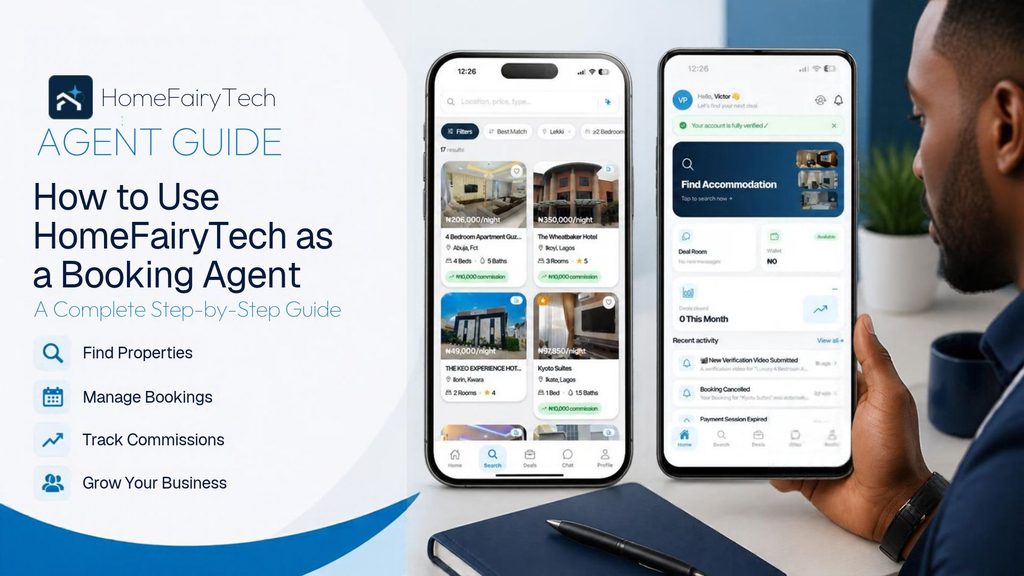
Finding the right property for a client shouldn’t mean spending hours calling property owners, searching through WhatsApp groups or relying on other agents to find available apartments.
As a booking agent, you need access to suitable properties, competitive prices and a reliable way to manage bookings and earn commissions.
That’s where HomeFairyTech comes in.
HomeFairyTech connects booking agents with hospitality businesses, including shortlet apartments and hotels, through one platform. Instead of depending entirely on informal networks to find properties, you can use the app to discover available inventory, review property details, communicate with owners and manage your bookings.
Whether you’re an experienced booking agent or just starting your hospitality business, HomeFairyTech gives you tools to help you find suitable properties and manage your booking activities.
But how do you get started? How do you find apartments for your clients? And how do you track your commissions?
This guide will walk you through the process, from creating your account to managing bookings and withdrawing eligible commissions.
Let’s get started.
Step 1: Download the HomeFairyTech App
The first step is to download the HomeFairyTech app to your smartphone.
HomeFairyTech is available for Android and iPhone users.
- Android: Download the app from the Google Play Store.
Google Play Store link: https://play.google.com/store/apps/details?id=com.homefairytech.app - iPhone: Download the app from the Apple App Store.
Apple App Store Link: https://apps.apple.com/ng/app/homefairytech/id6812704258
After downloading the app, install it and open it to begin.
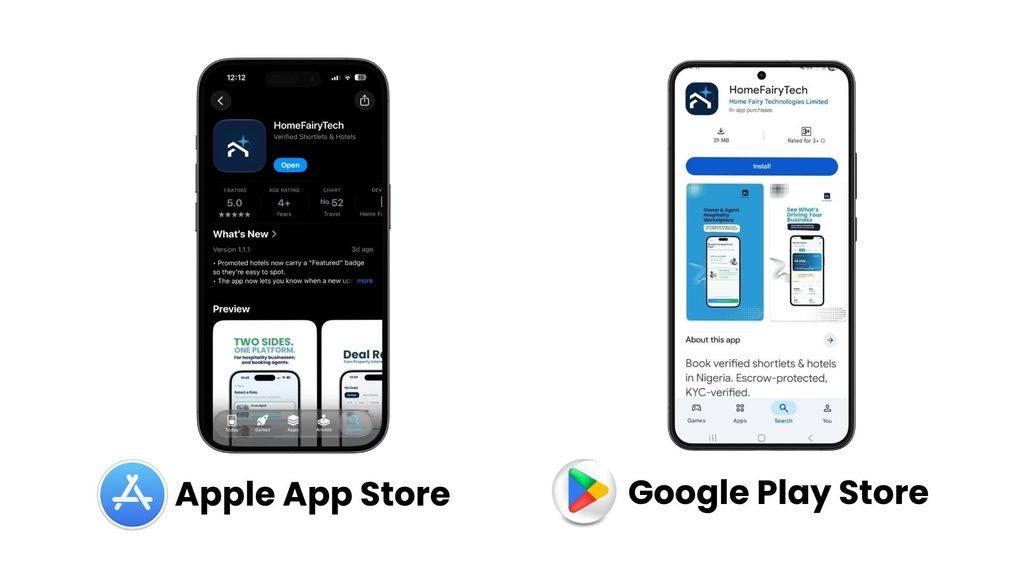
Download HomeFairyTech from your phone’s app store to get started.
Once the app opens, you’ll be able to begin the registration process or log in if you already have an account.
Step 2: Create Your Agent Account
To access HomeFairyTech’s agent features, you need to create an account.
Follow these steps:
- Open the HomeFairyTech app.
- Select the appropriate account type for an agent.
- Select the option to create an account or sign up.
- Enter the required registration details.
- Select the appropriate account type for an agent.
- Complete the registration process by filling the form fields displayed in the app.
Make sure you provide accurate information when creating your account. This will help you complete identity verification and access the features available to verified agents.
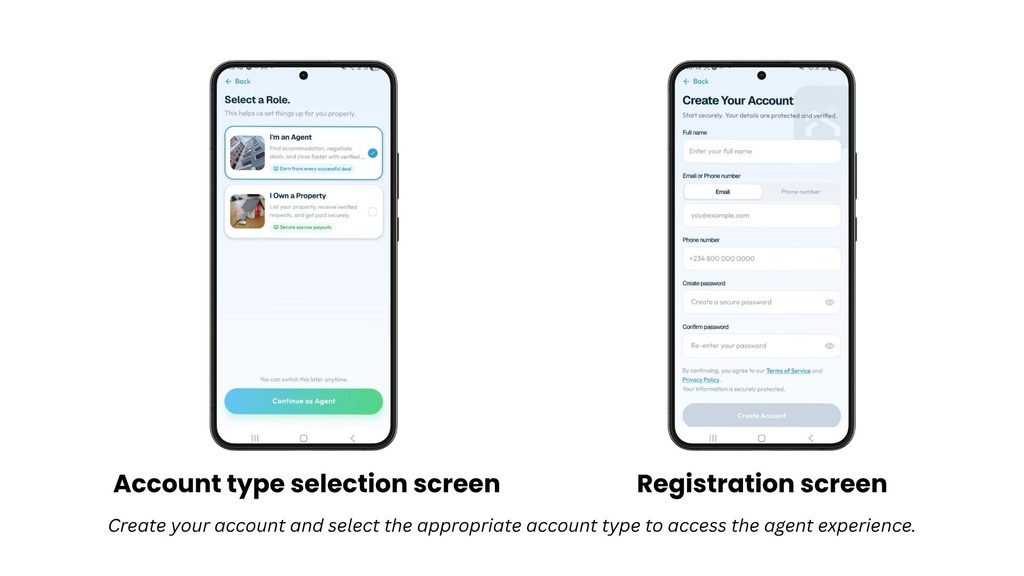
Once you’ve registered successfully, proceed to identity verification.
Step 3: Complete Your Identity Verification
HomeFairyTech uses identity verification to help establish trust between people using the platform.
As an agent, completing Know Your Customer (KYC) verification is an important step before you can access restricted features such as booking, bidding, chatting and earning commissions.
Here’s how to complete the process:
- Open the verification section of your account.
- Select an accepted identity document, such as your National Identification Number (NIN) or international passport, as supported by the app.
- Enter the requested information.
- Upload the required identification details or photograph.
- Complete the facial verification or liveness check.
- Submit your information for review.
- Check your account for updates to your verification status.
Make sure your information is clear and accurate. If any details are incorrect or the submitted images are unclear, you may need to follow the app’s instructions to resolve the issue.
Verification can take time, so it is best to complete it early rather than waiting until you need to confirm a booking.
[INSERT SCREENSHOT 4: KYC verification page]
[INSERT SCREENSHOT 5: Identity document selection]
[INSERT SCREENSHOT 6: Facial verification or liveness check]
[INSERT SCREENSHOT 7: Verification status]
Screenshot caption: Follow the verification instructions in the app and check your status after submitting your details.
Once your verification is approved, you can access the features available to your account.
Step 4: Explore Your Agent Dashboard
After setting up your account, take a few minutes to explore the HomeFairyTech dashboard.
Your dashboard is your starting point for discovering properties, managing booking activities and accessing other tools.
Depending on the features available to your account, you may find sections for:
- Property Search: Discover shortlet apartments and hotel listings.
- AI Property Search: Find properties using a description of what your client needs.
- Bookings: Monitor your booking activity and relevant updates.
- Chat and Deal Room: Communicate with property owners and manage deal-related discussions.
- Wallet: Review eligible commission balances and transaction information.
- Business Insights: Access available business performance information.
- Profile: Manage your account details and verification status.
Spend some time exploring the available sections so you know where to find the tools you need.
[INSERT SCREENSHOT 8: Agent dashboard with key sections highlighted]
Screenshot caption: Your dashboard gives you access to the tools you need to discover properties and manage booking activities.
Now that you know your way around the app, let’s find a property for your next client.
Step 5: Search for Properties on HomeFairyTech
Imagine a client contacts you looking for a two-bedroom shortlet in Lekki, Lagos, for a weekend stay.
You need to find a suitable apartment, review the price and amenities, and confirm that the property meets your client’s requirements.
HomeFairyTech’s property search feature helps you explore available listings in one place.
How to search for a property
- Open the property search section.
- Enter your preferred location.
- Select the property type or room category, where available.
- Apply relevant filters, such as price range, room type or amenities.
- Browse the available results.
- Open promising listings to review their details.
- Compare suitable properties before making a decision.
For example, if your client wants an apartment in Lekki with two bedrooms, Wi-Fi and a swimming pool, use the available search filters to narrow down the options.
The more clearly you understand your client’s requirements, the easier it becomes to identify suitable listings.
[INSERT SCREENSHOT 9: Property search interface]
[INSERT SCREENSHOT 10: Location and filter selection]
[INSERT SCREENSHOT 11: Search results showing available properties]
Screenshot caption: Use property search and available filters to narrow down your options.
What should you check when viewing a listing?
Before recommending a property to your client, review the listing carefully.
Pay attention to:
- Location: Is the property in the area your client requested?
- Price: Does the rate fit your client’s budget?
- Room type: Does the property have the required number of bedrooms or rooms?
- Amenities: Does it provide the facilities your client needs?
- Photographs: Do the images give a clear picture of the property?
- House rules: Are there restrictions your client should know about?
- Availability: Can the property accommodate the requested dates?
- Additional charges: Are there caution deposits or other charges to consider?
Never assume that a property is available simply because it appears in search results. Review the available booking information and confirm any outstanding details through the platform’s supported process.
[INSERT SCREENSHOT 12: Individual property listing showing photographs, rates and amenities]
Screenshot caption: Review the listing details before recommending a property to your client.
Step 6: Use AI Property Search to Find Better Matches
Sometimes, your client’s requirements are more specific than a simple location or price filter can capture.
For example, a client might need:
“A furnished two-bedroom apartment in Lekki for a weekend stay, with reliable Wi-Fi, a swimming pool and a budget of ₦150,000 per night.”
Instead of manually searching through numerous listings, you can use HomeFairyTech’s AI Property Search feature to help find suitable options.
How to use AI Property Search
- Open AI Property Search in the app.
- Enter a description of the property your client needs.
- Include relevant details such as location, budget, room type and preferred amenities.
- Review the results returned by the feature.
- Open the most relevant listings.
- Check their prices, availability and property details before proceeding.
Be as specific as possible when describing what your client needs.
For example, instead of searching for just “apartment in Abuja,” you could describe the preferred neighbourhood, number of bedrooms, budget and important amenities.
This helps you focus on properties that are more relevant to the client’s request.
Remember that AI search results are a starting point. Always review the actual listing and confirm availability and booking terms before making a commitment.
[INSERT SCREENSHOT 13: AI Property Search interface]
[INSERT SCREENSHOT 14: Example search query]
[INSERT SCREENSHOT 15: AI search results]
Screenshot caption: Describe your client’s requirements and review the suggested properties.
Step 7: Review Property Prices and Booking Conditions
Finding a suitable property is only the beginning. Before proceeding with a booking, you need to understand the property’s pricing and conditions.
Open the listing and review the information provided.
Check the following:
Nightly rate: Understand how much the property costs per night.
Length of stay: Calculate the expected cost based on the client’s check-in and check-out dates.
Amenities: Make sure the facilities your client needs are available.
House rules: Review any restrictions relating to guests, visitors, noise or other activities.
Caution deposit: Check whether a caution deposit applies and understand the stated terms.
Additional charges: Review any other fees shown in the listing or booking process.
Availability: Ensure that the property can accommodate the requested dates.
If anything is unclear, use the available communication features to ask the owner for clarification.
Do not promise your client a rate, facility or booking arrangement that you have not confirmed.
[INSERT SCREENSHOT 16: Property details and pricing information]
Screenshot caption: Check the property’s rate, amenities, availability and booking conditions before proceeding.
Step 8: Book a Property or Submit a Bid
Once you have identified a suitable property, the next step is to follow the booking process available for that listing.
Depending on the property and the transaction, HomeFairyTech may provide a direct booking process or a bidding and negotiation workflow.
If direct booking is available
- Open the property listing.
- Select the booking or reservation option.
- Enter the requested booking information.
- Select the check-in and check-out dates, where applicable.
- Review the booking summary.
- Confirm the information is correct.
- Follow the instructions to submit the booking request or proceed with the transaction.
If bidding is available
- Open the relevant property or deal.
- Select the bidding option.
- Enter your proposed terms as permitted by the platform.
- Review your submission.
- Submit the bid.
- Monitor the deal for updates or a response from the owner.
A bid or booking request should not be treated as a confirmed reservation until the app indicates that the required confirmation steps have been completed.
[INSERT SCREENSHOT 17: Booking or bidding option]
[INSERT SCREENSHOT 18: Booking details or bid submission screen]
[INSERT SCREENSHOT 19: Booking or bid status]
Screenshot caption: Follow the available booking or bidding workflow and monitor the status in the app.
Step 9: Communicate With Property Owners Through Chat and Deal Room
Sometimes, you need more information before finalising a booking.
Perhaps your client wants to confirm a property’s availability, ask about check-in arrangements or clarify a particular facility.
HomeFairyTech provides in-app communication features that help agents and property owners discuss relevant details.
How to communicate with an owner
- Open the relevant property, booking or deal.
- Access the available chat or Deal Room feature.
- Send your question or message.
- Review the owner’s response.
- Clarify any outstanding booking details.
- Monitor the conversation for further updates.
Where supported, the Deal Room can help organise deal-related discussions, including negotiations and responses to offers.
Keep your messages clear and professional. Include the details necessary to help the owner understand your request.
For example, rather than asking, “Is this available?”, you could ask whether a particular apartment is available for two nights on specified dates and whether the displayed rate applies to that period.
Keeping your booking-related communication within the platform also helps maintain a record of the conversation associated with the transaction.
[INSERT SCREENSHOT 20: In-app chat interface]
[INSERT SCREENSHOT 21: Deal Room interface]
Screenshot caption: Use in-app communication tools to clarify details and manage deal-related conversations.
Step 10: Complete the Payment Process
After the booking terms have been agreed upon, follow the payment instructions displayed in the app.
HomeFairyTech’s published app information describes escrow-protected payments, under which funds are held until the applicable stay-confirmation conditions have been met.
This process is designed to support greater transparency between agents, customers and property owners.
What should you do before paying?
- Review the property and booking details.
- Confirm the dates and length of stay.
- Check the total amount payable.
- Review any applicable deposits or additional charges.
- Select an available payment method.
- Follow the instructions to complete the transaction.
- Check the payment and booking status in the app.
Keep your transaction records and booking confirmation accessible.
Do not assume that a payment has succeeded until the app provides the appropriate confirmation.
Also, make sure you understand the applicable cancellation, refund and stay-confirmation conditions before proceeding.
[INSERT SCREENSHOT 22: Booking payment summary]
[INSERT SCREENSHOT 23: Payment method selection]
[INSERT SCREENSHOT 24: Payment confirmation or transaction status]
Screenshot caption: Review the booking summary and follow the in-app payment instructions.
Step 11: Track Your Bookings
After submitting a booking, keep track of its progress.
The relevant booking section can help you monitor available booking information and updates.
Depending on the transaction, you may need to check whether:
- A booking request has been submitted.
- The owner has responded.
- The reservation has been confirmed.
- Payment has been completed.
- The stay has been completed.
- Any further action is required.
Check the app regularly for updates and respond promptly when additional information is needed.
If you are handling several clients at once, maintaining an organised record of their requirements and booking statuses can also help you avoid confusion.
[INSERT SCREENSHOT 25: Agent bookings dashboard or booking history]
Screenshot caption: Monitor your booking activity and check the status of each transaction.
Step 12: Understand How Agent Commissions Work
For many agents, one of the most important questions is simple: how do I earn from bookings on HomeFairyTech?
HomeFairyTech provides a commission process for eligible completed bookings. Understanding how that process works helps you manage your expectations and keep track of your earnings.
How the commission process works
1. Find a suitable property.
Search for a property that meets your client’s requirements.
2. Follow the booking process.
Complete the required booking steps and ensure that the transaction meets the platform’s applicable conditions.
3. Complete the stay.
The booking must reach the required completion stage. A booking request or an uncompleted stay does not automatically mean that a commission is payable.
4. Commission processing begins.
Once the relevant completion conditions are satisfied, the eligible commission is processed in accordance with HomeFairyTech’s commission rules.
5. Check your wallet.
Use the wallet to review the commission balance and relevant transaction information available to your account.
6. Withdraw eligible funds.
Once your commission is available for withdrawal, follow the wallet’s withdrawal process.
Commission amounts and eligibility depend on the applicable booking terms. Review the commission information associated with your transaction if you need to understand a particular payment.
[INSERT SCREENSHOT 26: Commission information or transaction record]
Screenshot caption: Review your commission information and track eligible earnings.
Step 13: Check Your Wallet and Withdraw Your Commission
Your HomeFairyTech wallet helps you monitor your available balance and relevant transactions.
After eligible commissions have been credited, you can check the wallet to see the funds available to you.
How to check your wallet
- Open the wallet section in the app.
- Review your available balance.
- Check your transaction history.
- Identify any commission credits or withdrawals.
- Review the status of any pending transactions.
How to withdraw your commission
When funds are available for withdrawal:
- Open the wallet.
- Select the withdrawal option.
- Choose or enter your registered Nigerian bank account details as requested.
- Enter the amount you want to withdraw, within the available balance and applicable limits.
- Review the withdrawal details.
- Confirm the request.
- Monitor the transaction status until it is completed.
Make sure your bank details are accurate before submitting a withdrawal request.
If a transaction is pending, review its status and follow the instructions provided in the app rather than submitting repeated requests without checking the first one.
[INSERT SCREENSHOT 27: Wallet balance and transaction history]
[INSERT SCREENSHOT 28: Withdrawal screen]
[INSERT SCREENSHOT 29: Withdrawal status or confirmation]
Screenshot caption: Check your available balance and follow the withdrawal instructions to receive eligible funds.
Step 14: Use Business Insights to Monitor Your Performance
Growing your booking business requires more than finding properties. You also need to understand your activity and identify opportunities to improve.
If Business Insights is available to your account, explore the information it provides about your business performance.
Depending on the metrics available, you may be able to review relevant booking or performance information from your dashboard.
Use these insights to understand your activity, monitor progress and identify areas where you may need to improve your approach.
For example, if you notice that clients frequently request properties in a particular location, you can pay closer attention to listings that match that demand.
The goal is to make more informed decisions as you grow your business.
[INSERT SCREENSHOT 30: Business Insights dashboard]
Screenshot caption: Explore the available insights to better understand your booking activity.
Step 15: Manage Your Profile and Subscription
Your profile contains important information about your account.
Review it regularly to ensure your details are accurate and your verification status is up to date.
Depending on the options available in your account, you may be able to:
- Review your personal information.
- Check your KYC status.
- Update editable profile details.
- View your subscription or plan.
- Review the features available to your account.
- Access relevant account settings.
Some features may depend on your account status or subscription. Check the plan information displayed in the app to understand which features are available to you.
[INSERT SCREENSHOT 31: Agent profile and account settings]
Screenshot caption: Keep your account information up to date and review the features available to your account.
Start Finding Booking Opportunities With HomeFairyTech
You do not have to rely entirely on phone calls, scattered messages and informal networks to find properties for your clients.
HomeFairyTech gives booking agents a platform to discover shortlet apartments and hotels, review property information, communicate with owners, manage booking activity and track eligible commissions.
The first step is to create your account, complete verification and familiarise yourself with the available features.
From there, you can begin exploring properties and building a more organised approach to your booking business.
Ready to get started?
Download the HomeFairyTech app today on Google Play and the Apple App Store.
Google Play Store link: https://play.google.com/store/apps/details?id=com.homefairytech.app
Apple App Store Link: https://apps.apple.com/ng/app/homefairytech/id6812704258
Find the right property. Manage your bookings. Track your commissions.
HomeFairyTech; Your trusted occupancy partner.